
The Dubsado Xero Integration: What Nobody Tells You Before You Set It Up
March 31, 2026
Whether you are already using Dubsado and looking to connect it with Xero, or you are in the middle of a Dubsado setup and want to get your accounting integrated from the start, this guide covers what you actually need to know.
At my agency, OBM Associates, we work with both UK and international clients, and that is actually what makes our setup a little more complex than most. If you are working with clients in one location, the integration is relatively straightforward. Add VAT into the mix across different territories, and there is a bit more groundwork to do before you connect anything.
The Dubsado Xero integration is one of the best things you can set up for your business. It lets you sync invoices and payments automatically, keeps your bookkeeping accurate without doing everything twice, and means your finances are flowing into the right place in real time. But there are things you need to get right first, and the preparation matters more than most people realise.
This is the practical guide I wish had existed when we set ours up.
How the Dubsado Xero Integration Works and Why It Makes Sense for Service Businesses
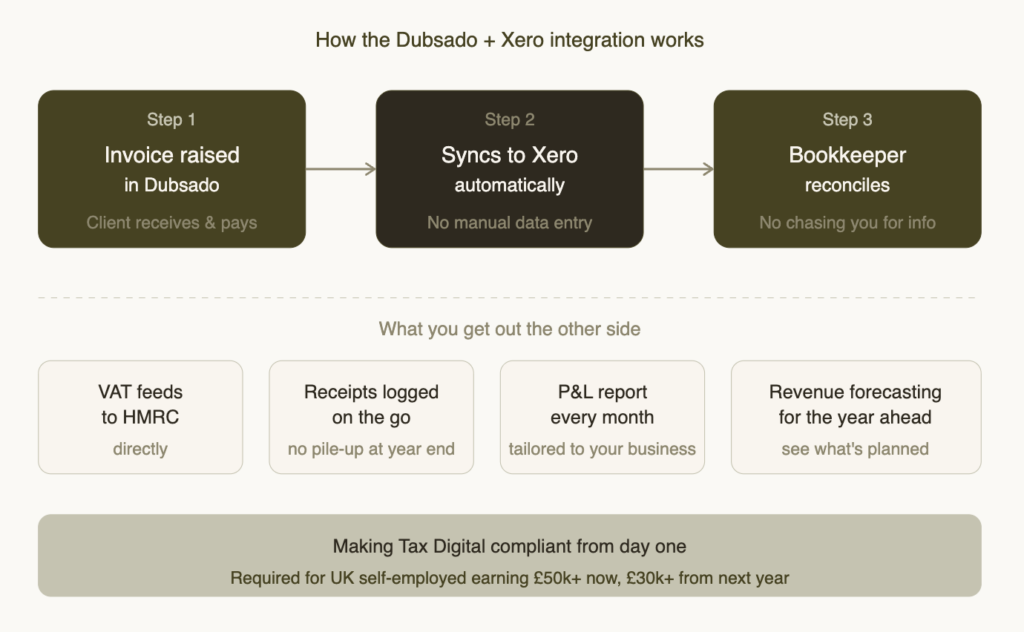
Dubsado is your business management tool for the entire client journey. Proposals, contracts, workflows, invoices, onboarding. It handles your client and project management end to end. What it is not is online accounting software, and it was never designed to be.
Xero is the accounting side. It is where your bookkeeping features live: income, expenses, tax reporting, bank reconciliation, and financial visibility across your business. The two serve completely different purposes, which is exactly why connecting them makes so much sense
The Dubsado Xero integration means that when you create and send invoices through Dubsado, they push across into Xero automatically. Payments follow the same path. You save time and keep books accurate without copying anything across manually, and your client records stay exactly where they belong, in Dubsado.
For small businesses running on Dubsado, this changes things significantly. You no longer need to manually manage bookkeeping across two systems. Every invoice that goes out, every payment that comes in, is already sitting in your accounting software. When you need to sync invoices and payments, the integration handles it. And with quarterly digital reporting now a requirement for many UK businesses, having that data flowing through automatically all year round makes the whole process far less stressful.
The ability to sync invoices and payments automatically is not just a convenience. For a growing service business, it is an operational necessity.
Connecting, Configuring, and Managing the Integration
Before you connect Xero account to Dubsado, the preparation matters more than the connection itself. Get your Xero organisation set up properly first. That means your chart of accounts reflects how your business actually operates, your tax rates are configured correctly, and you know exactly which payment accounts your income lands in before it settles.
Trying to sort all of this after the integration is live makes everything harder and messier.
How to connect Xero account to Dubsado
When you are ready, go into your Dubsado settings and find the Xero integration settings page. You will see the option to connect Xero account to Dubsado. Click through, log in to Xero and allow access, and the platforms are linked. The process itself is straightforward once the groundwork is done.
During setup, you will be asked to map your payment account and clearing account. The clearing account is the holding space where money from Stripe or your payment processor sits before it settles into your actual bank account. If you are not completely certain which accounts these should map to, stop here and speak to a bookkeeper before you continue. Getting the payment account and clearing account wrong at foundation level creates problems that take a long time to unravel.
You will also want to make sure your Xero organisation settings are correct: the right base currency, the right tax settings for your business, and the correct financial year start date. These details matter more than they look like they do.
Automatic sync vs manual sync
Once connected, you choose how data moves. Here is a quick guide to which approach suits which situation:
| Automatic sync | Manual sync |
| High-volume, standardised projects where you want invoices and payments to push across without you touching anything. | Bespoke retainers, milestone payments, or custom scopes where you want to review data before it lands in your ledger. |
| Set and forget. Runs in the background. | More control. You decide when to manually sync invoices and payments. |
Most businesses use both: automatic sync as the default, manual sync for project types that need a closer look before they hit the accounts.
Disconnect Xero and troubleshooting
If you need to disconnect Xero to reconfigure your setup or troubleshoot, you can do that from the same Xero integration settings page. Disconnecting does not remove data that has already synced. It just stops new records from flowing across.
For most common issues, Dubsado’s help center FAQ and troubleshooting section will point you in the right direction. For businesses with more complex requirements, a quick connect via Zapier for advanced workflows can bridge gaps the native integration does not cover.
How Dubsado Clients Map to Xero Contacts
This is worth understanding before you go live, because it is where things can quietly go wrong if your data is not consistent across both platforms.
When an invoice syncs across, Xero uses the client’s email address to match client by email address to an existing contact record. If a match is found, the invoice files against that contact. If no match is found, a new contact is created automatically, pulling through the client’s first name last name company name and phone number from their client profile in Dubsado.
Your client journey into Xero starts at the email address. The distinction between existing vs new contacts is handled automatically, which is great, but only if your data is consistent across both platforms. Before you connect, it is worth running through this checklist:
- Audit your Dubsado clients for duplicate or inconsistent email addresses
- Check that first name, last name, and company name are filled in correctly across your records
- Make sure phone number and client profile details are complete for your key contacts
- Map your data across both platforms before you go live so you know what to expect
You can update Xero contacts manually to add missing details or merge duplicates after the fact. But getting it right at the point of connection is always the better option.
Tax Items, Tax Rates, and Mapping Between Dubsado and Xero
This section catches most people out. It is especially important if you are VAT registered, and it is one of the most common reasons the integration breaks down quietly in the background.
Xero has its own set of tax rates: standard rate, zero rate, exempt, and so on. Each one is a Xero tax item that needs to correspond to a Dubsado tax item. For the integration to work properly, every Dubsado tax item needs to be mapped to Xero correctly. Anything left unmapped means those invoices will not sync, and you will not always get a clear error message telling you which tax item caused the problem.
Before you connect anything, go through every tax item in your Dubsado and check it against your Xero tax rates. Make sure each Dubsado tax item has a corresponding Xero tax item it is mapped to Xero against. If you are using more than one tax (standard rate VAT for UK clients and zero rate for international clients, for example), you need more than one tax item configured, and every single one needs to be a mapped Xero tax rate. Having more than one tax in play without all of them correctly mapped is one of the most common reasons syncing breaks down.
You also need to decide whether you are using tax exclusive invoices (VAT added on top at checkout) or tax inclusive pricing (VAT already built into the displayed price). If your Dubsado is set up as tax exclusive invoices and Xero expects something different, the figures will not match. Decide on your approach and make sure both platforms are consistent. Unmapped taxes, or a mismatch in tax treatment, will cause invoices will not sync.
If you have existing unmapped taxes from before the integration was in place, go back and work through them. It is painstaking but necessary. Leaving them means a portion of your invoice history simply is not appearing in your accounts.
How Dubsado Invoices Map Into Xero Accounts and Line Items
Once your tax items are sorted, it is worth understanding exactly how Dubsado invoices in Xero will appear. This is where your financial reporting either becomes useful or becomes noise.
When an invoice syncs across, your Dubsado invoices in Xero carry through the invoice numbers and dates, the line item name and description for each service, and the due date and payment plan due dates if you are using payment plans. Contact records pull through automatically too, so your invoice history in Xero stays consistent with what is in Dubsado without anyone re-entering anything.
The part that needs your attention is account mapping. Each line item needs to be assigned to an account in Xero. If you have not set up specific income categories, everything files into a default Xero account. A default Xero account full of uncategorized line items tells you very little about how your business is actually performing.
Before you go live,set up your sales and revenue accounts in Xero to reflect the different types of income you generate, and map each package or service type in Dubsado to the right account. Uncategorized line items are the enemy of clean bookkeeping, and they are entirely avoidable with a bit of setup time upfront.
For businesses using payment plans, the due date and payment plan due dates carry through from Dubsado, so Xero can track outstanding payments against the correct schedule. Payments received queue against your bank feed for reconciliation. If a payment is sitting in a current asset account as a clearing balance before it settles, Xero will reflect that accurately, as long as your clearing account was mapped correctly in the first place.
Which is why the preparation always comes before the connection.
Sync Behaviour, Data Flow, and Understanding Your Statuses
The most important thing to understand about this integration is that it operates as a one way sync. Data flows from Dubsado into Xero, not the other way around. Dubsado sends invoices and payments across; Xero receives them. Nothing comes back.
In practice, that means Dubsado is always your source of truth for client records. If you make a change in Xero (voiding an invoice, for example), Dubsado does not know about it. You would need to update that manually. Understanding the one way sync from the start prevents a lot of confusion later about why the two platforms are not showing the same thing.
Sync payments alongside sync invoices
The integration handles both separately and it is worth being clear on this. When a client pays an invoice in Dubsado, that payment syncs across to Xero and queues against your bank feed for reconciliation. If you are using a payment plan, each instalment will sync payments as they come in.
Your Xero always reflects your actual income position, not just what has been invoiced but what has actually been received.
Understanding the Xero status tags
Every invoice in Dubsado shows a Xero status tag once the integration is live.
Here is what each one means:
| Status | What it means |
| Synced | Made it across successfully. Nothing to do. |
| Pending | In transit. Give it a few minutes before investigating. |
| Not synced | Has not been pushed yet. May need sending manually. |
| Error | Something went wrong. Check contact email and tax item mapping first. |
Getting familiar with the xero status not synced pending synced error labels means you can catch problems early rather than discovering them at the end of a reporting quarter. Make it a habit to check these regularly.
Syncing errors, how to retry the sync, and Xero sync limitations
Most syncing errors come down to one of two things: an unrecognised contact (usually an email address mismatch) or an unmapped tax rate. When you see an error, check both of those first.
Once you have identified and fixed the issue, you can retry the sync on that invoice from within Dubsado. Most syncing errors are straightforward to resolve once you know the cause. The important thing is not letting them stack up unnoticed.
It is also worth being aware of xero sync limitations for certain transaction types. Voided invoices, credit notes, and some complex payment plan structures may not behave exactly as you would expect. If you are working with anything outside a standard invoice-and-payment flow, test it before you rely on it.
VAT and International Clients
If you are VAT registered and you serve clients both in the UK and internationally, you need to think carefully about how your Dubsado is structured before you connect anything. This is the complication that catches most people off guard, and the one that causes the most problems after the integration is live.
The issue is that Dubsado does not have conditional logic in its workflows. So if you have automated processes that generate invoices, there is no built-in mechanism for Dubsado to automatically apply a VAT invoice for a UK client and a non-VAT invoice for an international one. That distinction has to be built into how your projects and workflows are set up before you ever connect to Xero.
For us, that meant restructuring our entire Dubsado setup. We split our offerings into UK-only and worldwide versions, split the workflows, and manually built in the steps that could not be automated because of the VAT question. It was more work up front, but once it was done, every invoice flowing through into Xero was correct from the start.
Skip this step and you will have incorrectly tagged invoices in Xero, tax reports that do not reconcile, and a significant amount of cleanup to work through. It is much easier to structure Dubsado correctly before you integrate than to fix it afterwards. Every time.
Why This Matters Right Now: Making Tax Digital
If you have been putting off getting your systems properly sorted, Making Tax Digital is the reason to stop.
From 6 April 2026, MTD for Income Tax is mandatory for sole traders and landlords with income over £50,000. If that is you, this is not something on the horizon. It is here.
If your income is over £30,000, your mandatory start date is April 2027. More runway, yes, but the businesses that use that time to get properly set up will be in a very different position to those who leave it until the deadline.
Under MTD, quarterly digital submissions to HMRC are required:
- Q1 (6 Apr to 5 Jul): submission due 7 August
- Q2 (6 Jul to 5 Oct): submission due 7 November
- Q3 (6 Oct to 5 Jan): submission due 7 February
- Q4 (6 Jan to 5 Apr): submission due 7 May
On top of quarterly updates, you will need an End of Period Statement for each income source and a Final Declaration to confirm all data and pay any tax owed, both due by 31 January following the end of the tax year. For VAT-registered businesses, MTD for VAT is already mandatory, with submissions generally due one calendar month and seven days after the end of each VAT period.
Late submissions and payments incur penalty points that build towards financial penalties. This is not a system you want to be catching up with manually every quarter.
With Dubsado and Xero properly integrated, your data is already there when you need it. You are not reconstructing three months of invoices from memory. It is flowing through automatically, all year, ready to report.
What It Actually Looks Like When Xero and Dubssdo are Working
I have covered a lot of the complications here, so I want to be clear about the other side of it. The benefits of having Xero once it is set up properly are genuinely phenomenal.
Every invoice goes out through Dubsado and lands in Xero automatically. Payments sync across and reconcile against your bank feed. And for the first time, most founders can actually see:
- Their real profit margins, not just their revenue figure
- Exactly where their money is going each month
- Which expenses have crept up without them noticing
- Which subscriptions are still active that they thought they had cancelled
- Their financial trends over time, not just a snapshot at year end
When your systems are integrated properly and your books are accurate, that visibility is just there. It changes how you make decisions, and it changes how confidently you can run your business.
It also opens up the option for bookkeeping as an ongoing service, having someone manage your Xero, keep your categories clean, and make sure everything is reconciled properly on a regular basis. Once the integration is in place and working correctly, that becomes a much more straightforward thing to support.
Getting this right is not just about compliance. It is about having the financial clarity to run your business with confidence.
Need Help Getting Dubsado and Xero Set Up?
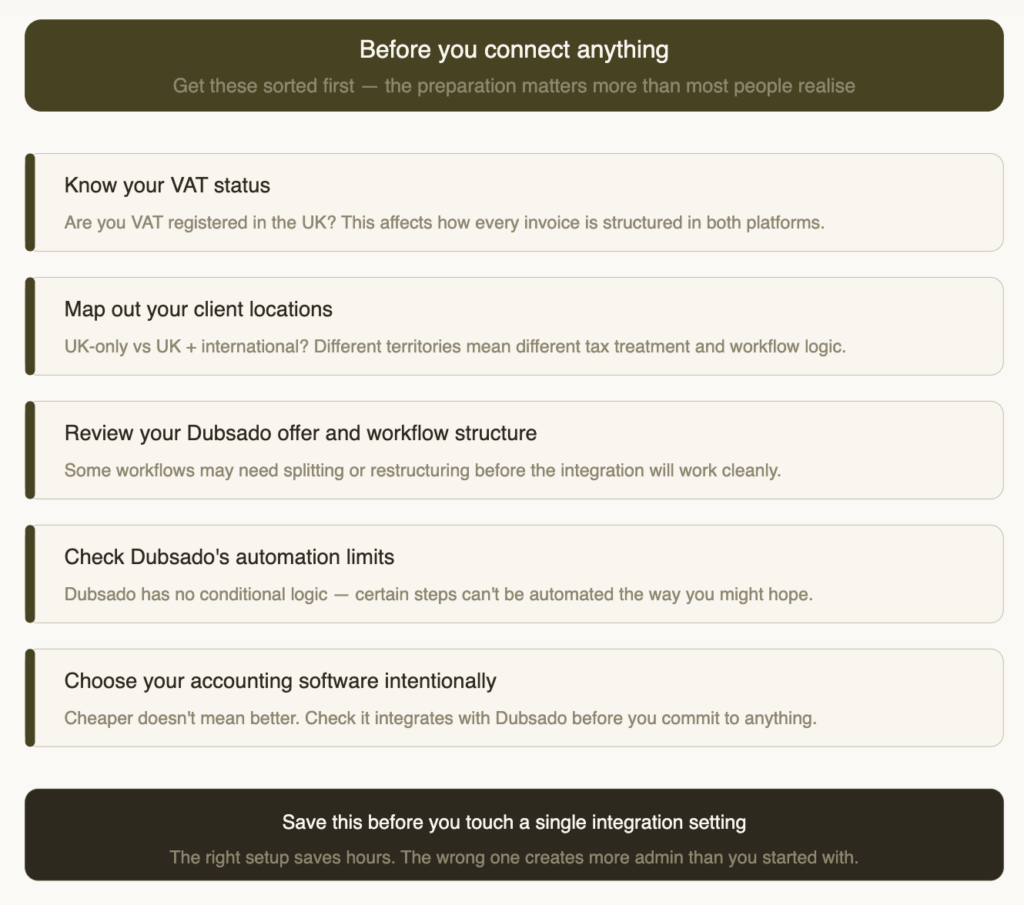
Getting the Dubsado Xero integration right means thinking about your business structure before you touch the integration settings, particularly if you are VAT registered or serving international clients. The setup itself is not complicated, but the preparation is where most people come unstuck.
If you want support getting this configured properly from the start, or if you have already connected the two and things are not flowing the way you expected, this is exactly what we help with. We will look at how your Dubsado is structured, make sure your Xero is set up to reflect how your business actually operates, get the integration configured correctly, and support with ongoing bookkeeping from there.
Get in touch to find out more.
on instagram